
Hi, I’m Pär, Head of Internation Business at Precio Fishbone. I recently attended a Microsoft 365 Copilot Training event for Executives. It was an insightful event.
In this blog, I’ll share two practical takeaways: tips to improve your prompts in Copilot, and a case study showing how an executive can use Copilot to work faster and stay aligned.
Tips for Better Copilot Prompt
Like all LLMs, the Prompt (input) is the key factor to get a good response (output). Here are a few interesting things I learned in the training that hopefully could help you write better prompts when using Copilot.
Good Copilot prompt look like this
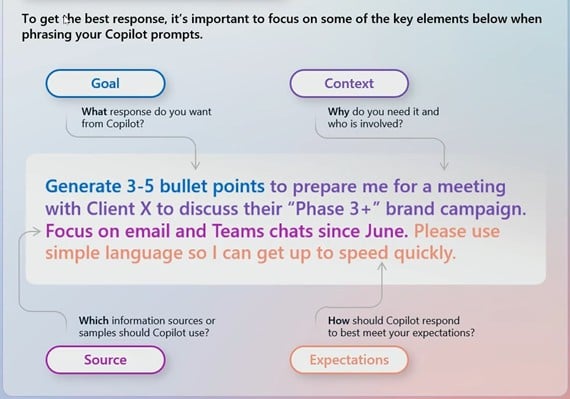
A good Copilot prompt focuses on four key elements:
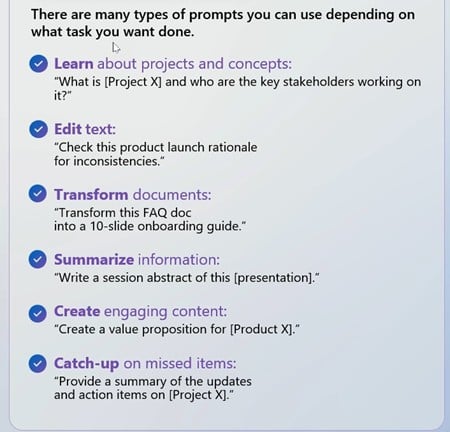
Goal: You want to be as clear as you can about what you want Copilot to do. Here are some popular goals you can think of when writing prompts
Context: It’s about providing background information to explain why you need it. Copilot is integrated so it can understand who “Client X” is and what “Phase 3+” means. So you often do not need to paste long background sections.
Source: Specify the content Copilot should use. This improves accuracy and keeps answers aligned with the latest information.
Expectations: Setting proper expectations can improve the output a lot. Examples: "Use professional language" or "Explain like I'm 5.
Helpful hints to keep in mind
Know Copilot's limitations: Copilot works best when you’re explicit about what it should use as context. Point it to the right file, email thread, or meeting, and state your goal and constraints
Use quotation marks: This helps Copilot know what to write, modify, or replace for you.
Explore with Copilot Prompt Gallery: Filled with example prompts that you can edit to make your own.
Communicate clearly: Pay attention to punctuation, grammar, and capitalization.
Start fresh: Avoid interrupting and type "new topic' when switching tasks.
Be professional: Using polite language improves Copilot's response.
Executives using Copilot Case
About the case
The training used a fictional company, Boulder Innovations, an EV charging infrastructure provider. The company’s strategic initiatives included:
- European market expansion
- Launch of an affordable residential product line (ChargeHub Home)
- IT security improvements
- Customer experience enhancement across the end-to-end journey
Executive persona: Maya Fayer
Maya is a member of the executive team leading two critical initiatives: European expansion and the ChargeHub Home launch.
The case is about how Maya, an executive member, leverages Microsoft 365 Copilot to make strategic decisions faster, collaborate more efficiently across departments.
You may know some examples, but others offer fresh ideas. Let's dive in!
Outlook
Where any executive’s day starts, where all of our day starts, in Outlook.
For most executives, the day starts with an inbox full of emails, often 10 to 20 or more. Messages come from everywhere: customers, internal teams, partners, event organizers, and automated notifications.
In that volume, it is easy to miss what matters. It is even harder to retain the key details, especially when a topic spans long threads with multiple rounds of back-and-forth.
Maya faces the same challenge. She begins her morning by drafting a reply to Klaus, a new European distribution partner. The conversation has grown into a lengthy email chain involving several stakeholders across the business, which makes it time-consuming to reconstruct the full context and identify the real decision points.
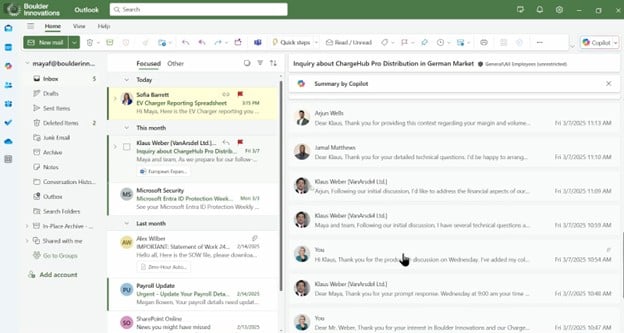
Maya has limited time to work through the entire thread manually, so she uses Copilot to generate key points of the conversation.
Within seconds, she has the key takeaways: Klaus is interested in distributing Boulder’s products in Germany, Austria, and Switzerland. At the same time, Klaus has raised several follow-up questions about technical considerations. She proposed a follow-up call for discussion.
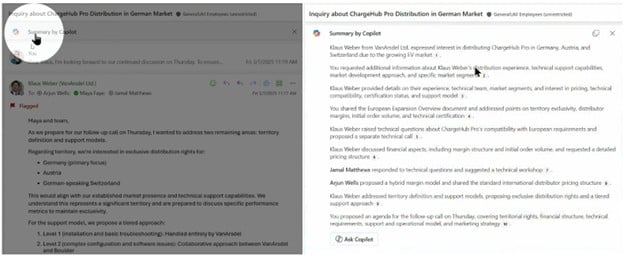
Maya also asks further questions about other topics like their negotiation about margin, for example, which Copilot will scan all the emails and give specific answers with sources. This helps her quickly catch up with the situation.
Word with Copilot
Maya knows she needs to prepare a Memorandum of Understanding (MoU) for Klaus, grounded in the email thread and informed by input from Sales. Here is how she approaches it.
First, she uses Copilot in Word to create a draft for legal agreement between Boulder and Klaus’s company, she references the relevant emails and documents by typing ‘/’ to add them to the Copilot prompt.
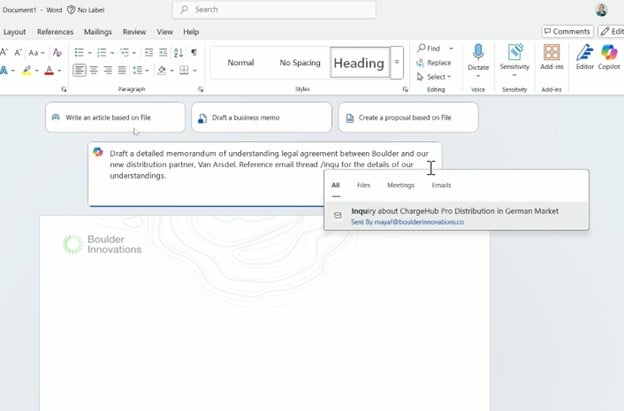
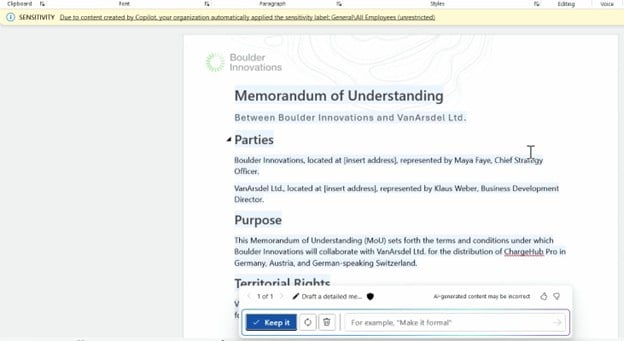
Copilot drafts the MoU inside the company template Maya is already using, which keeps formatting consistent. From there, Maya iterates in the Copilot chat to tailor the content, for example clarifying scope, responsibilities, milestones, and next steps.
Depending on the organization’s information protection configuration, Copilot can also apply or recommend a sensitivity label to reduce the risk of oversharing.
Excel with Copilot
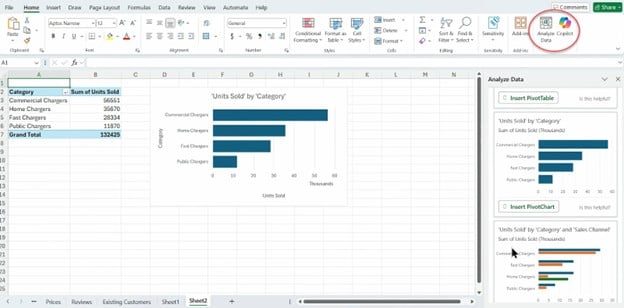
Once the MoU draft is in place, Maya opens an Excel file to validate key commercial assumptions with data. She uses Analyze Data to quickly surface insights such as: “Which category has the highest unit sales?” and “How do sales channels perform by category?”
With Copilot and Analyze Data, she can extract the specific statistics she needs without spending time building pivot tables or manual summaries.
With the MoU draft and supporting metrics ready, Maya can now write a clear partner-facing email to Klaus and keep the conversation moving.
Note: Always review Copilot’s output. Like in this case, while Copilot can draft the document, it’s a good idea for Maya to run it by legal team. Because it is her name on the e-mail going out, not Copilot’s.
Team Recap
After Outlook, the app most executives rely on almost every day is Teams. It is where cross-functional work happens: group chats, meetings, quick decisions, and ongoing coordination across departments.
Maya has an important meeting with department heads and needs to capture what was agreed, what is still open, and what needs to happen next. But with multiple meetings every day, it is difficult to keep track of details and follow-ups consistently.
This is where Copilot in Teams becomes especially useful. After a recorded or transcribed meeting, Teams provides a Recap experience.
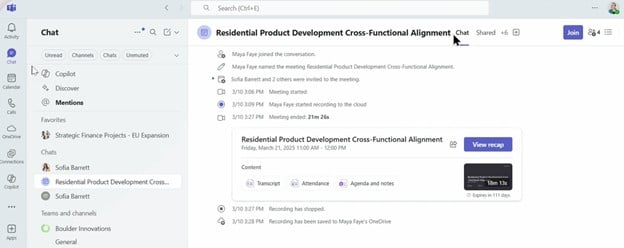
In the recap, Maya can access the meeting recording and review the discussion flow. She can also see who spoke, for how long, and which topics were covered as the meeting progressed. This makes it easier to understand where time was spent and where decisions were made.
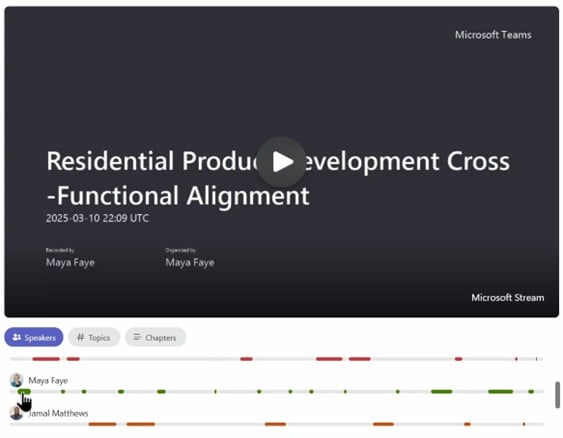
Beyond the timeline view, Copilot provides a structured summary of the meeting. Maya can scan it quickly, ask follow-up questions such as “What decisions did we make?” or “What action items were assigned to each department?”, and even ask Copilot to draft a short follow-up email to send to attendees.
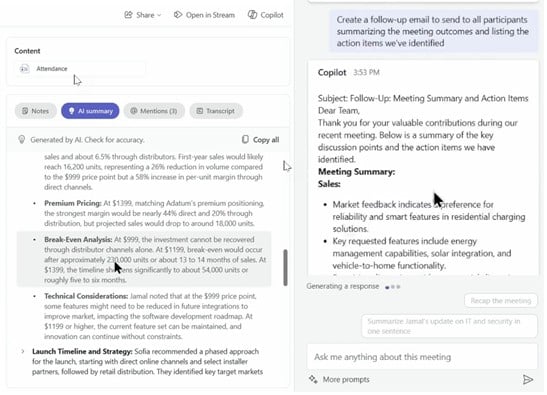
What I showed above is the Teams Intelligent Recap experience, which helps you review what happened after the meeting. Microsoft has also recently introduced Facilitator, a new agent in Teams that helps capture and structure meeting notes during the meeting. If this is an area you want to explore further, you can read our related blog: How Microsoft Teams Facilitator Improves Meeting Productivity.
Wrapping Up
As we’ve seen throughout Maya’s workday, Microsoft 365 Copilot can change how a strategic leader operates. It helps Maya make faster, more informed decisions while staying aligned with stakeholders across Sales, Legal, and Operations.
For executives like Maya, Copilot is not only about saving time. It is about improving decision quality and keeping momentum across the organization. Many of the insights that would normally take hours or days to compile can be available in minutes.
If you are exploring Microsoft 365 Copilot for your leadership team, Precio Fishbone can help you identify high impact use cases, define governance and security requirements, and plan a rollout that drives real adoption. Contact us to discuss your goals and next steps.
Contact usShare this on

Pär Johansson
Pär works with international business at Precio Fishbone, project delivery & digital services, helping turn complexity into progress and strategy into long-term value. With many years of experience in international business, He is known for building strong relationships and turning plans into meaningful progress. Driven by people, trust and sustainable growth.