What is a Facilitator Agent in Teams?
The Teams Facilitator Agent is a Copilot-powered meeting companion in Microsoft Teams that helps before, during, and after the meeting by surfacing the agenda, capturing key points, decisions, and action items.
Its notes are co-authored by participants and stored as a Loop page that remains accessible after the meeting in Recap, under Notes.
How is Facilitator Different from The Old “AI Notes” Feature?
The older AI Notes experience (via Intelligent Recap) mainly produced an after-the-fact summary once the meeting ended. It was helpful, but largely one-way - participants couldn’t shape the output while the discussion was happening.
Facilitator improves on traditional post-meeting AI notes by working in real time, not just after the meeting ends. It supports live coauthoring, where AI drafts the notes and participants refine them as the discussion happens.
It also acts in the shared meeting space rather than as a private assistant. In the meeting chat, participants can @mention Facilitator to ask questions and post answers the whole group can see.
Instead of producing a single static recap, Facilitator keeps the notes up to date as the conversation evolves. It also helps the meeting stay on track by watching time, capturing action items, and flagging when the discussion starts to drift off the agenda.
Using Facilitator in Teams Meetings
Before the meeting
The facilitator looks for an agenda in the meeting invite or in the Loop meeting notes component. If it finds one, it posts the agenda into the meeting chat so everyone has the same plan going in. If no agenda is detected, it prompts participants to define meeting goals.
During the meeting
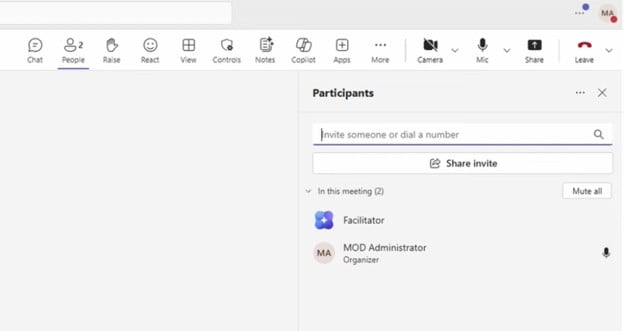
First enter the meeting, you can go to “People” tag to check whether you have turned on the Facilitator or not. If you did it will show as a participant like the image below. But if you forgot, you can always find options to turn it on in the “More” section above.
Facilitator helps the meeting stay on track and on time. When agenda items include time allocations, it displays an agenda timer on the meeting stage and tracks progress as topics begin. It can also run a separate countdown timer that is visible to everyone, and it alerts participants when the timer ends.
At the same time, it captures highlights as the conversation unfolds: key points, decisions, and tasks. Notes are generated in the Notes tab and are editable by participants, so the record is co-authored live instead of owned by a single note-taker.
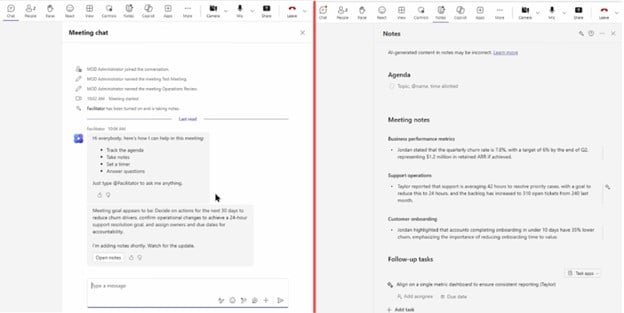
During meetings, use the Copilot icon in your meeting options at the top. But the output from Copilot is only available to you.
What makes the facilitator agent different from a normal Copilot in teams is that you can mention the facilitator agent in a meeting chat. Then you can ask Facilitator questions and share the answer with everyone for everybody to see.
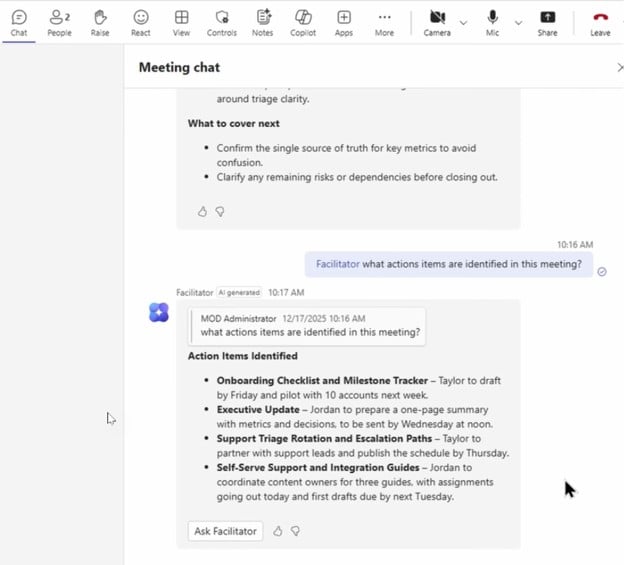
Facilitator can also answer questions in the meeting chat by drawing from the meeting content and the web, and it can surface timeline-style markers and reminders at key points (midway and wrap-up) to recap decisions and open questions.
If the meeting runs past the scheduled end time, Facilitator can alert the group and help participants schedule necessary follow-up meetings.
After the meeting
During the meeting and later by reopening the meeting from your calendar, you can review and edit the notes and action items, and see any related content or insights that Facilitator surfaces as potentially relevant to the discussion.
The output is saved as a Loop workspace stored in the organizer’s OneDrive and automatically shared with all meeting participants.
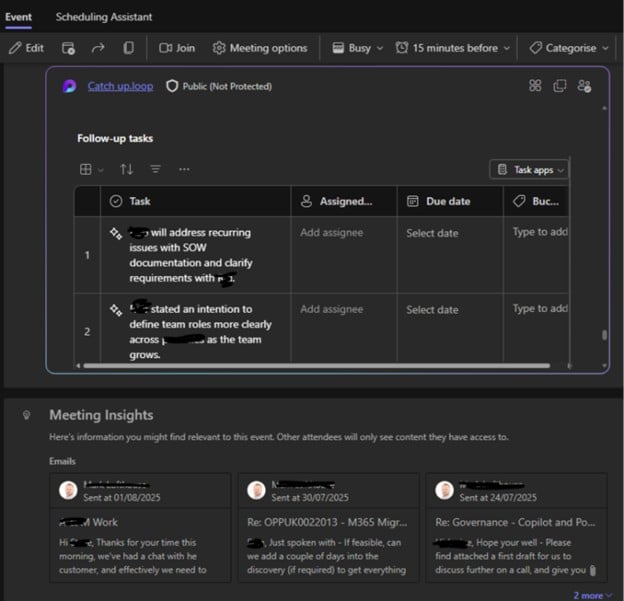
For follow-through, Facilitator captures tasks during the meeting and lets users sync them to Planner from the Follow-up tasks section (for example, by selecting Accept).
It can also create a Word or Loop document from a meeting topic when requested in chat, with an explicit acceptance step to generate the draft.
Common Use Cases for Facilitator Agent?
I use this in most meetings but there are loads of use cases I see and hear about.
- Use it in daily stand-ups or quick huddles to record progress, blockers, and action items.
- Use it in customer or scoping calls to capture commitments and agreed next steps in one shared place.
- Use it in project updates or planning sessions to keep the agenda moving and convert decisions into follow-ups.
Quick Tips to Get the Best Use of Facilitator
To get high-quality notes and action items, start with a simple agenda (even 3 bullets) and assign owners during the discussion. Speak decisions clearly (“We will…”, “Owner is…”, “Due date is…”) so they’re captured cleanly.
Keep the Notes tab open when needed and do quick edits live, small corrections in the moment save a lot of follow-up later. If your meeting runs long, use the timer to time-box the last topic and explicitly confirm next steps before you wrap.
Frequently Asked Questions
Is Facilitator simply the old “AI notes” toggle with a new name?
Not really. It uses the same idea of AI notes, but expands into an agent that can surface agendas, capture decisions/actions live, and support interactive prompts in the meeting chat. It also supports Teams Rooms scenarios, including ad-hoc in-room meetings started via a QR code.
How is it different from using Copilot during a Teams meeting?
Copilot prompts and answers are private to the person asking. Facilitator works in the group context, the agent can highlights and notes appear in the meeting conversation for everyone (internal participants) to see.
Why use Facilitator if we already record and transcribe?
Recording and transcription help you replay the meeting later. Facilitator helps you run the meeting better by managing time, capturing shared decisions and action items as you talk.
Where does Intelligent Recap fit?
Intelligent Recap is the post-meeting experience in the Recap tab (AI meeting notes, recommended tasks, timeline markers, etc.). Facilitator complements that by producing a shared, editable record during the meeting that you can later revisit in Recap > Notes.
Do I need a Copilot license to use Facilitator?
You need a Microsoft 365 Copilot license to add/turn on Facilitator in a meeting. Once it’s on, any meeting participant (excluding external participants) can see the real-time updates in Chat and Notes.
What about in-person meetings (no scheduled Teams call)?
You can use Facilitator for ad-hoc, in-person discussions with Teams Rooms by scanning the on-screen QR code to start Facilitator note-taking. Microsoft also announced starting Facilitator-driven note-taking for in-person meetings from the Teams mobile app (Copilot license required).
Share this on

Pär Johansson
Pär works with international business at Precio Fishbone, project delivery & digital services, helping turn complexity into progress and strategy into long-term value. With many years of experience in international business, He is known for building strong relationships and turning plans into meaningful progress. Driven by people, trust and sustainable growth.