
What is Microsoft Copilot in the Power Platform?
Microsoft Copilot in Power Platform is an AI assistant built into the Power Platform suite. It uses generative AI (powered by Azure OpenAI Service and other large language models used by Microsoft in Power Platform features) to understand natural language inputs and assist in building your solution.
Instead of starting with a blank canvas, you can start with a conversation: describe the app you want to build or the workflow you need, and Copilot will begin constructing it for you.
Copilot can create a starter canvas app from a description, generate one or more Dataverse tables for the data model, and include sample data to help you get started. In Power Automate, Copilot can create flows based on a description of a process and answer questions about your flow. It can also make edits such as updating or replacing actions.
You can treat Copilot like a built-in assistant for the first draft that understands both natural language and the Power Platform’s tools. It can generate an initial draft, including tables, formulas, screens, or flow steps, by setting up data tables, writing formulas or expressions, and constructing app screens or flow steps.
Building Apps Faster with Copilot in Power Apps
Power Apps Copilot can speed up how you create canvas apps. You can start building with a simple natural language description of your needs. You describe the app you want, and Copilot generates a starting point that you can review and refine.
Consider the different copilots in Microsoft Power Platform as specialized assistants that can help you be more productive. Copilot can help you build faster in the following ways:
- Prototyping
- Inspiration
- Help with completing tasks
- Learning about something
Prototyping
Copilot helps you get to a first version fast. You start by describing what the app should do in plain language, then let Copilot translate that into an initial structure you can review and refine. This works well when you need a quick proof of concept to align stakeholders and validate the process before spending time on design details.
When you're using Copilot, you can accelerate this process by sharing the prototype idea and allowing Copilot to create the table and screen for you. For example, you could ask Copilot to create an app that tracks ideas about building apps that help employees be more productive.
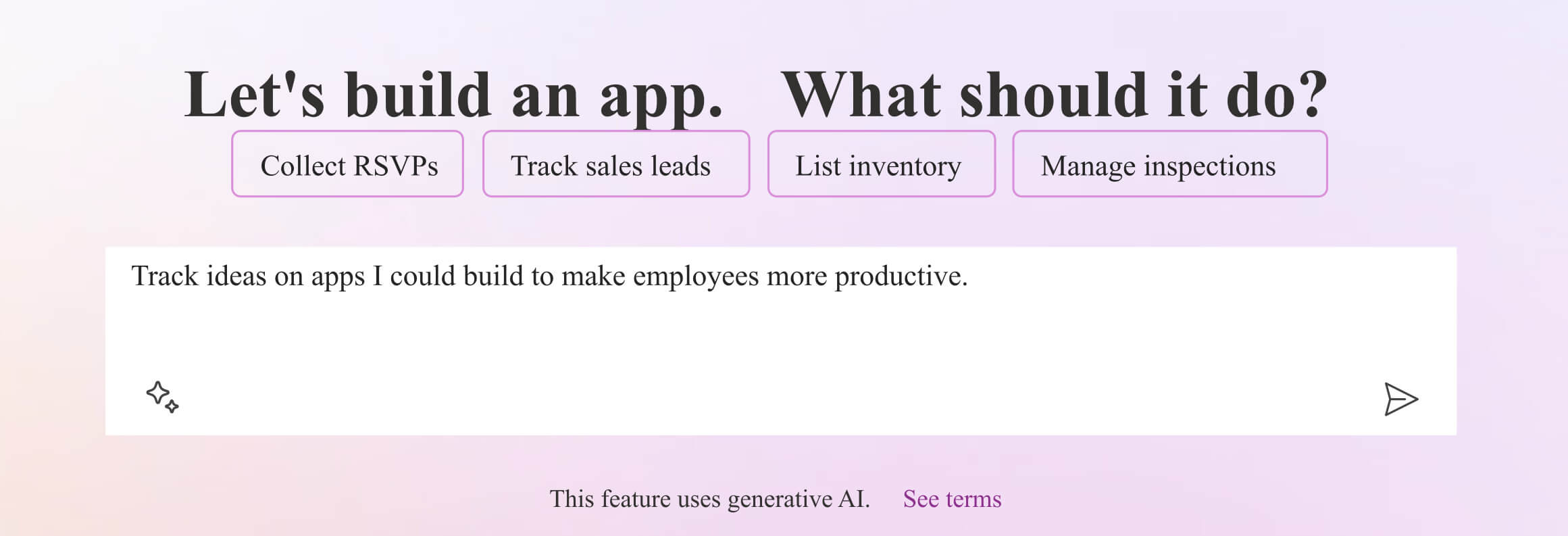
Inspiration
Copilot is also a partner for shaping the solution, not just building it. As you refine the data model, you can ask questions about how to handle approvals, statuses, or categories, and Copilot will suggest practical structures. You can then adjust what Copilot proposes so it matches how your organization actually works.
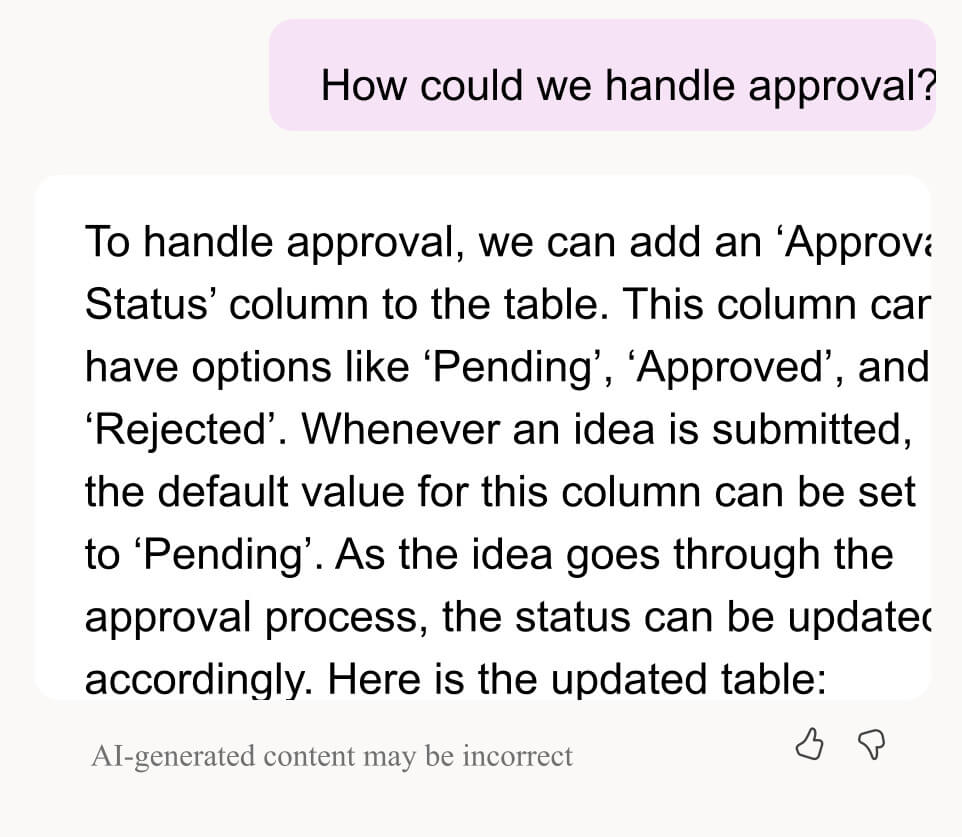
After reviewing Copilot’s suggestion, you can tell it to apply the change if it matches what you want. Copilot can generate a solid first draft of an app or flow from a scenario, which you can then complete and tailor.
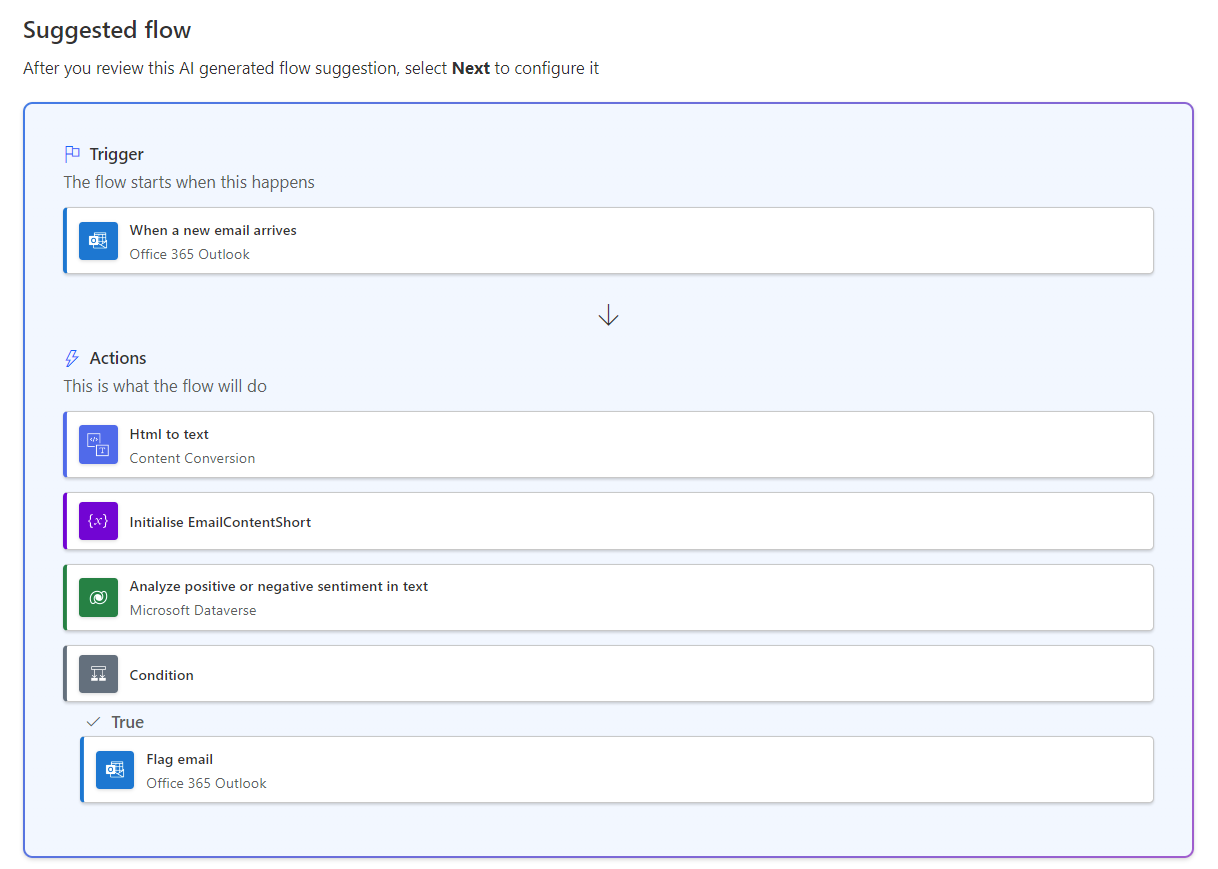
For example, you can ask Power Automate Copilot to flag emails that sound angry by using a prompt like: “When I get an email, if the sender’s sentiment seems angry, mark it as high priority.” Copilot will then propose a flow, including the trigger, key steps, and the connectors needed to make it work.
Help with completing tasks
Once you have a draft, Copilot helps you finish real build work faster. Instead of manually wiring everything, you can review an AI-suggested flow, then continue configuring it to match your needs.
When Copilot understands what you are building, it can make changes directly inside the designer. For example, if your app has 20 buttons and you want them all to use a new color, doing it manually means updating each button one by one. Copilot can help you apply the change much faster, saving time on repetitive work. Some Copilot editing features are preview-only and can change over time.
Learning about a topic
When you are building an app, flow, or website, you normally have to stop and search online to find answers. With Copilot, you can get help without leaving the designer. For example, if your Power Automate flow uses the Dataverse “List rows” action and you want to know whether it returned any records, you can ask Copilot: “How do I check if the List rows step returned any rows?” Copilot will answer based on your current flow context.
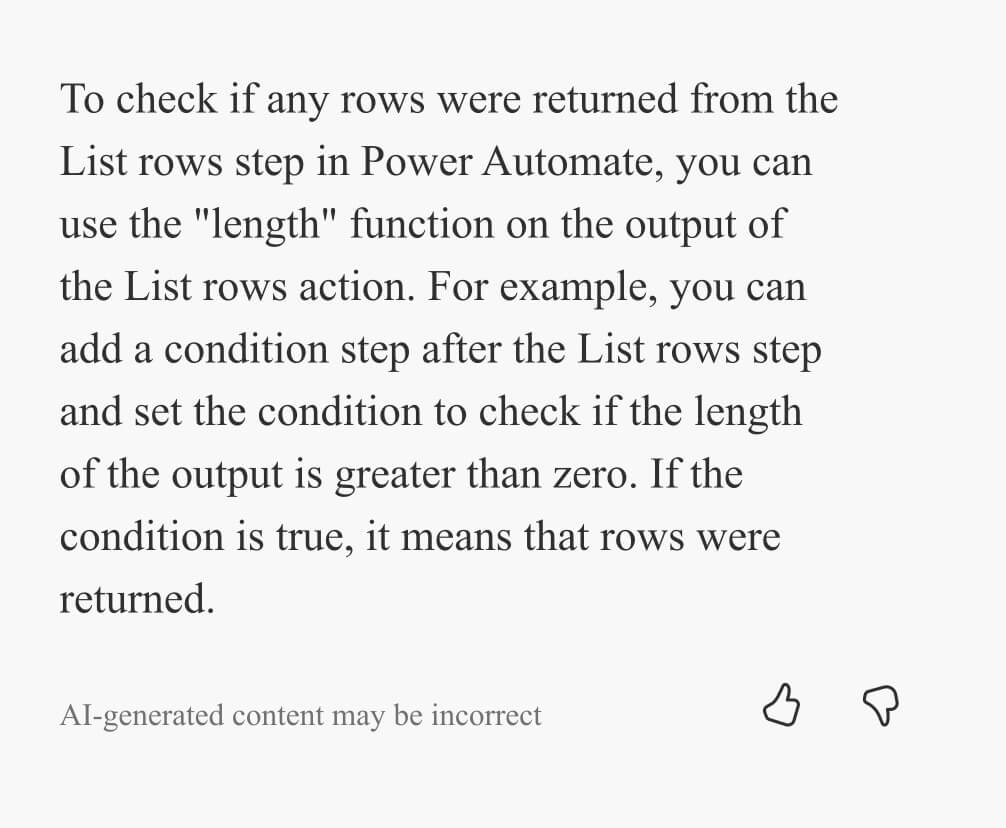
If you still need clarification, you can continue the same conversation. For instance, you might ask: “How does the length function work?” and Copilot can explain it with an example you can apply right away.
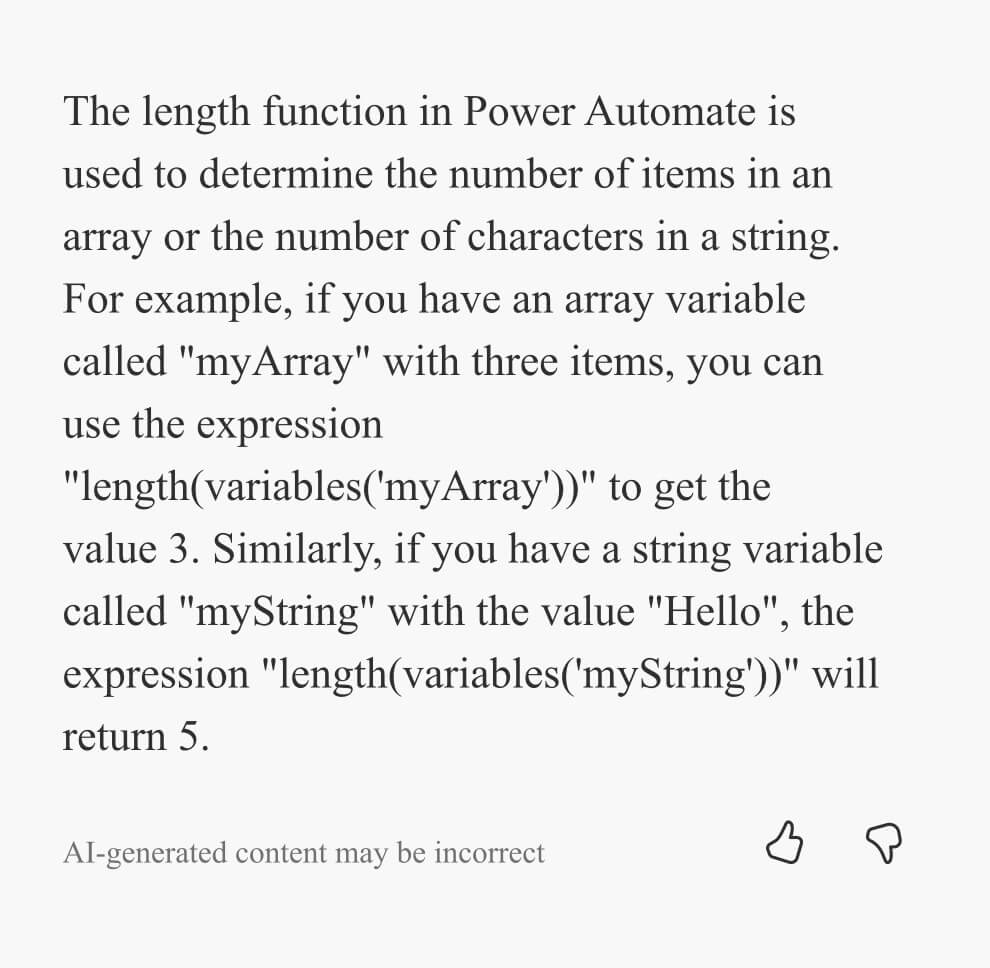
These are just a few ways Power Platform copilots can speed up solution building. The best approach is to try them in real projects, learn which tasks they handle well, and use them like an assistant that improves over time. If a feature is not available in your tenant, check again later. Copilot changes quickly and often.
How to Get Better Results from Copilot
Copilot works best when you treat each experience as purpose-built for the tool you are in. If you ask something outside the current context, Copilot may respond that it cannot help and prompt you to restate what you want to do in the app or flow you are building.
When that happens, it usually means your request did not clearly connect to the current solution, even if the intent felt relevant to you. A simple way to recover is to rewrite the prompt so it names the object you are working on and the outcome you want.
If Copilot still cannot execute the change, switch the phrasing from an action request to a guidance request. “How do I do this?” questions often succeed because Copilot has more flexibility to explain an approach, while “Make this change” requests require Copilot to map your prompt to a specific action it can safely perform.
Write prompts that are easy to execute
When you're communicating with Copilot, be as clear as you can be about your goals. Review the following dos and don’ts to guide you to a more successful Copilot building experience. If you want more guidance on better Copilot prompting, you can also refer to our deeper prompting tips guide.
What you should do
To get better results, do the following:
- Be clear and specific.
- Keep it conversational.
- Give examples.
- Check for accuracy.
- Provide contextual details.
- Be polite.
Don’ts
If you want a more successful Copilot building experience, don’t:
- Be vague.
- Give conflicting instructions.
- Request inappropriate or unethical tasks or information.
- Interrupt or quickly change topics.
- Use slang. If possible, name the connector or system you mean (Outlook, Teams, SharePoint, and so on).
Use Undo as a normal part of working with Copilot so you can experiment safely. After Copilot completes an action, it will summarize what it changed, and the Undo option appears in that same Copilot response message.
That Undo option stays available only until Copilot performs another action that changes your flow or app. Once Copilot makes a new change, the Undo option for the earlier change disappears, so review the result before asking Copilot to make another change.
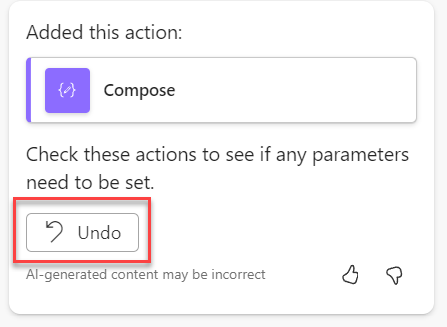
If you ask Copilot a question that does not make changes, such as “How do I filter for valid emails?”, the Undo option remains available for the most recent change because your flow or app has not been modified again.
Conclusion
In summary, Microsoft Copilot in Power Platform can help you move from idea to first draft faster by generating a starting canvas app, suggesting Dataverse structures, and drafting Power Automate flows you can refine. Used well, it reduces setup time and makes iteration easier, especially when you provide clear context and specific outcomes.
If you want help applying Copilot to a real use case, optimizing your Power Platform architecture, or accelerating delivery with governance in place, contact us to discuss your goals and get a tailored plan.
Share this on

Jerry Johansson
Works in IT and digital services, turning complex ideas into clear, engaging messages — and giving simple ideas the impact they deserve. With a background in journalism, Jerry connects technology and people through strategic communication, data-driven marketing, and well-crafted content. Driven by curiosity, clarity, and a strong cup of coffee.