Most organizations don’t lose sensitive information because they lack security tools. They lose it because information moves faster than policy. A contract starts in Word, gets shared over email, stored in SharePoint, discussed in Teams, and forwarded again. Once content crosses multiple apps and audiences, “protect the folder” stops being a complete strategy.
Microsoft Purview sensitivity labels are built for how work actually happens. They give organizations a consistent way to classify information and, when configured, apply protection that travels with the content across Microsoft 365.
What Sensitivity Labels Are
A sensitivity label is a business-defined tag you apply to content, such as “Public,” “Internal,” “Confidential,” or “Highly Confidential.” Microsoft positions labels as part of Microsoft Purview Information Protection and explains that labels are stored as clear text metadata so apps and services can interpret them consistently.
That clear text metadata detail is important. It means labels are not just visual markers for employees; they are a consistent signal Microsoft 365 can read to enforce policy. Labels are also designed to be persistent, so the classification travels with the content as it is saved, moved, or shared.
Where Sensitivity Labels Show Up in Microsoft 365
From a user perspective, labels are most visible in the tools people already use to create and share information. To use sensitivity labels in Office apps, you need a subscription edition of Office and labels published to users through the Microsoft Purview portal. For Outlook labeling, the mailbox must be in Exchange Online.
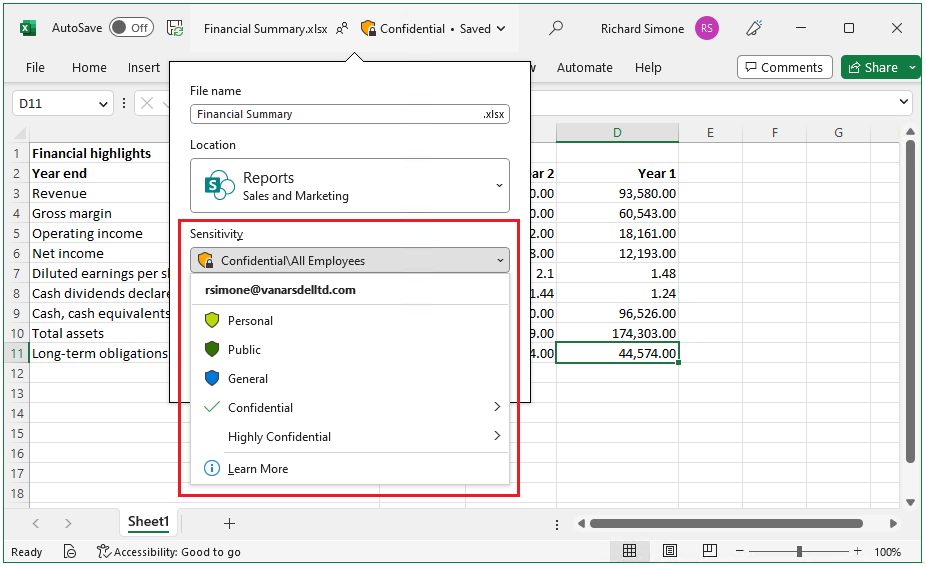
In Excel, supported versions show the label in the Sensitivity bar next to the file name on the top window bar, and users can change labels there or from the Sensitivity button in the ribbon.
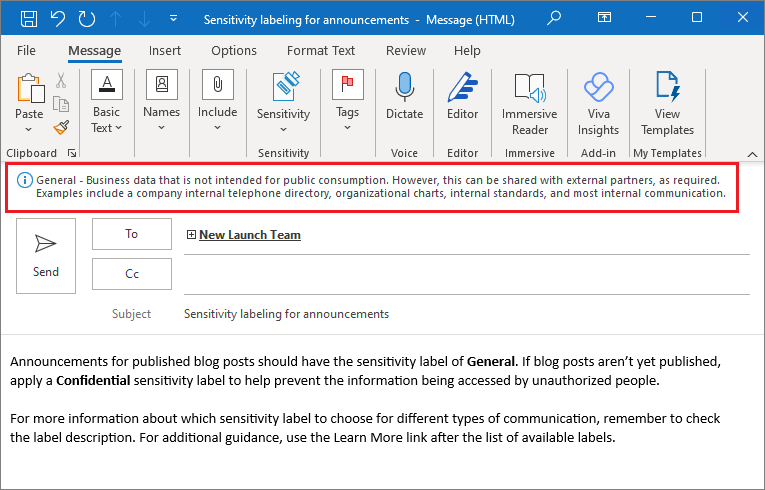
This example shows an email that was labeled General by another user. Because this label isn’t configured for encryption, the message opens normally. The admin-provided label description gives users extra context about what kinds of data the label covers.
From an administrator perspective, labels are created and managed as part of Microsoft Purview Information Protection. Microsoft’s guidance is aimed at admins and includes licensing and rollout considerations.
Sensitivity labels can protect Teams meetings and chat by labeling meeting invites and responses and turning on the Teams controls that match the label. Microsoft notes that some of these sensitivity-label scenarios (especially in Teams meetings) require a Teams Premium add-on. If you’re on a Microsoft 365 plan that does not include Teams, you may also need to buy a separate Teams license SKU first, and then add Teams Premium on top.
What Sensitivity Labels Can Do
The simplest use of a sensitivity label is classification. When employees apply labels consistently, the organization gains a common way to describe what is sensitive. But labels become more useful in practice when you configure them to trigger protection.
Microsoft says sensitivity labels can protect content by encrypting it and setting usage rules. For example, you can limit access to certain people or groups and block actions like forwarding, printing, or copying based on your policy. Labels can also add visible cues, such as headers, footers, or watermarks, so users can quickly see that the content is sensitive.
For collaboration at scale, Microsoft also describes label support across SharePoint and OneDrive, including guidance for enabling sensitivity labels for Office files stored there and considerations around encrypted content and collaboration experiences. In Teams, labeling extends into meeting protection and can align meeting behavior with sensitivity expectations.
Finally, labels can support automation. Microsoft’s guidance covers auto-labeling and deployment approaches so organizations can reduce dependence on perfect end-user behavior and achieve broader coverage across common workloads.
The Business Value Sensitivity Labels Deliver
For decision-makers, sensitivity labels are a practical way to translate policy into everyday behavior. Rather than relying only on training, labels give Microsoft 365 a consistent signal to apply guardrails.
The first value is reducing risk without slowing people down. When content is classified and protected based on sensitivity, the organization is less exposed to accidental oversharing and inappropriate redistribution. Microsoft also notes that labels can persist with content across apps and services.
The second value is standardization. A small, clear label taxonomy creates a shared vocabulary for data handling, so compliance becomes part of how teams work, not a separate set of security-only rules.
The third value is scalability. As collaboration grows, manual labeling becomes hard to sustain. Automation and service-level labeling extend coverage to where sensitive data accumulates, such as email and shared file repositories.
Finally, labels improve visibility. Microsoft notes that Purview reports can track label adoption and activity, helping teams monitor usage and continuously improve governance.
Sensitivity Labels by Subscription
Licensing is where many teams get stuck, because “Sensitivity labels” is not a single switch. In this article, we reference Microsoft’s comparison tables for SMB suites and Enterprise/Frontline plans (the two matrices shown in the visuals below) to highlight a few simple, beginner-friendly patterns.
In Microsoft’s SMB table, M365 Premium covers only the baseline: manual sensitivity labeling in M365 apps. Upgrade to Purview Suite or Defender & Purview Suites is where you unlock the real scale features like automatic labeling in apps, auto-labeling across Exchange/SharePoint/OneDrive, advanced classifiers, etc.
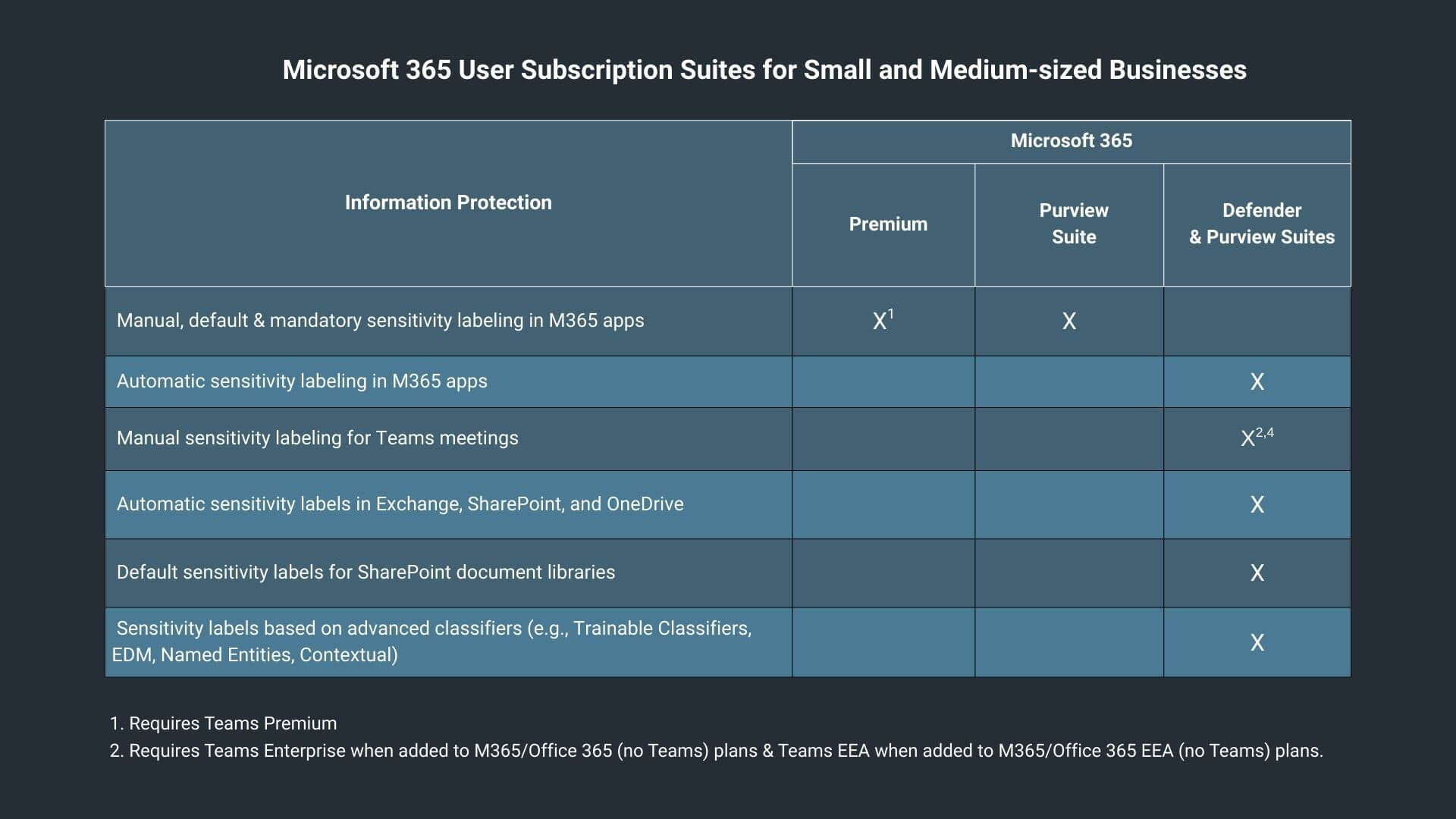
Summary from M365 for SMB Plans
The Enterprise table shows baseline manual labeling broadly across M365 E3/E5 and O365 E3/E5, but the advanced layers cluster in E5 / Purview Suite and the frontline suite variants. Teams meeting labeling requires Teams Premium (sometimes also Teams Enterprise/EEA depending on plan), and M365 F1 doesn’t include Exchange or Microsoft 365 apps, which affects how “labeling in apps” translates for frontline users.
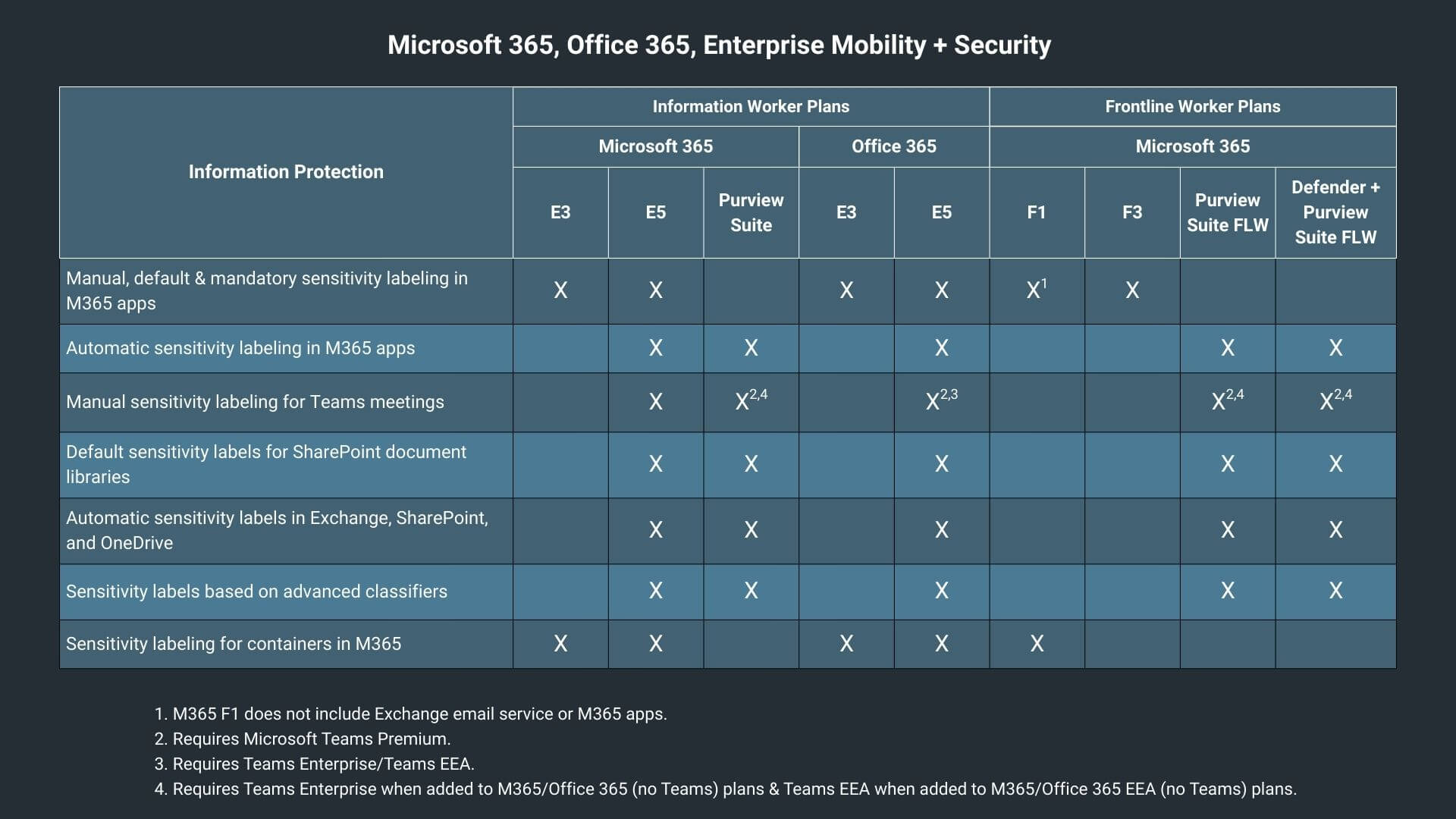
Summary from M365 for Enterprise Plans
A quick licensing rule of thumb (Purview in general)
There is no minimum number of users required to use Microsoft Purview. You can use it even in a 1-user tenant. The practical rule that drives cost and compliance is Microsoft’s principle: “any user who benefits from the service must be licensed.”
In other words, the number of required licenses is determined by who is in scope of the policy or control, not by how many admins configure it.
Examples:
- If you publish and enforce a Purview policy (DLP, retention, eDiscovery, etc.) for a group of 20 users, then those 20 users need the relevant licenses.
- If you apply it tenant-wide (all mailboxes, OneDrive accounts, SharePoint sites, Teams content), then essentially all users whose data is in scope need licenses.
This is important for sensitivity labels because labels are rarely used “just for one document.” Once you start enforcing label-based controls (encryption, external sharing restrictions, auto-labeling, mandatory labeling, meeting labeling), the population that “benefits” can quickly expand from a pilot group to most of the tenant.
Tips for Choosing the Right Licensing Option
A useful starting point is to clarify what phase one is really for. If the goal is to build classification discipline, baseline manual labeling is often enough to run a pilot, establish a small taxonomy, and measure adoption. If the goal is to reduce risk at scale, automatic labeling and advanced classifiers become far more valuable.
A second tip is to choose licenses based on the “enforcement surface.” Many organizations can quickly decide whether labeling only needs to work inside Office apps, or whether it must also apply across the services where data is stored and shared, such as Exchange, SharePoint, and OneDrive. When the answer is the second, it usually points to plans that include service-level automation, not just app-level manual labeling.
A final tip is to license around roles and data touchpoints, not org charts. The users who create and share sensitive information at scale often need higher-tier capabilities than users who mainly consume labeled content. Microsoft’s guidance typically translates into identifying the highest-risk scenarios first, licensing those workflows, then expanding coverage iteratively.
Final Thoughts on Sensitivity Labels
We hope this blog helped clarify what Microsoft Purview Sensitivity Labels are, where they apply in Microsoft 365, and how licensing choices influence what you can enforce in practice.
If you want to move from understanding to implementation, Precio Fishbone can help you design the right label taxonomy, select the most cost-effective licensing options, and set up policies and automation so your security posture improves without slowing collaboration. Contact us to discuss your environment and goals.
Share this on

Jerry Johansson
Works in IT and digital services, turning complex ideas into clear, engaging messages — and giving simple ideas the impact they deserve. With a background in journalism, Jerry connects technology and people through strategic communication, data-driven marketing, and well-crafted content. Driven by curiosity, clarity, and a strong cup of coffee.