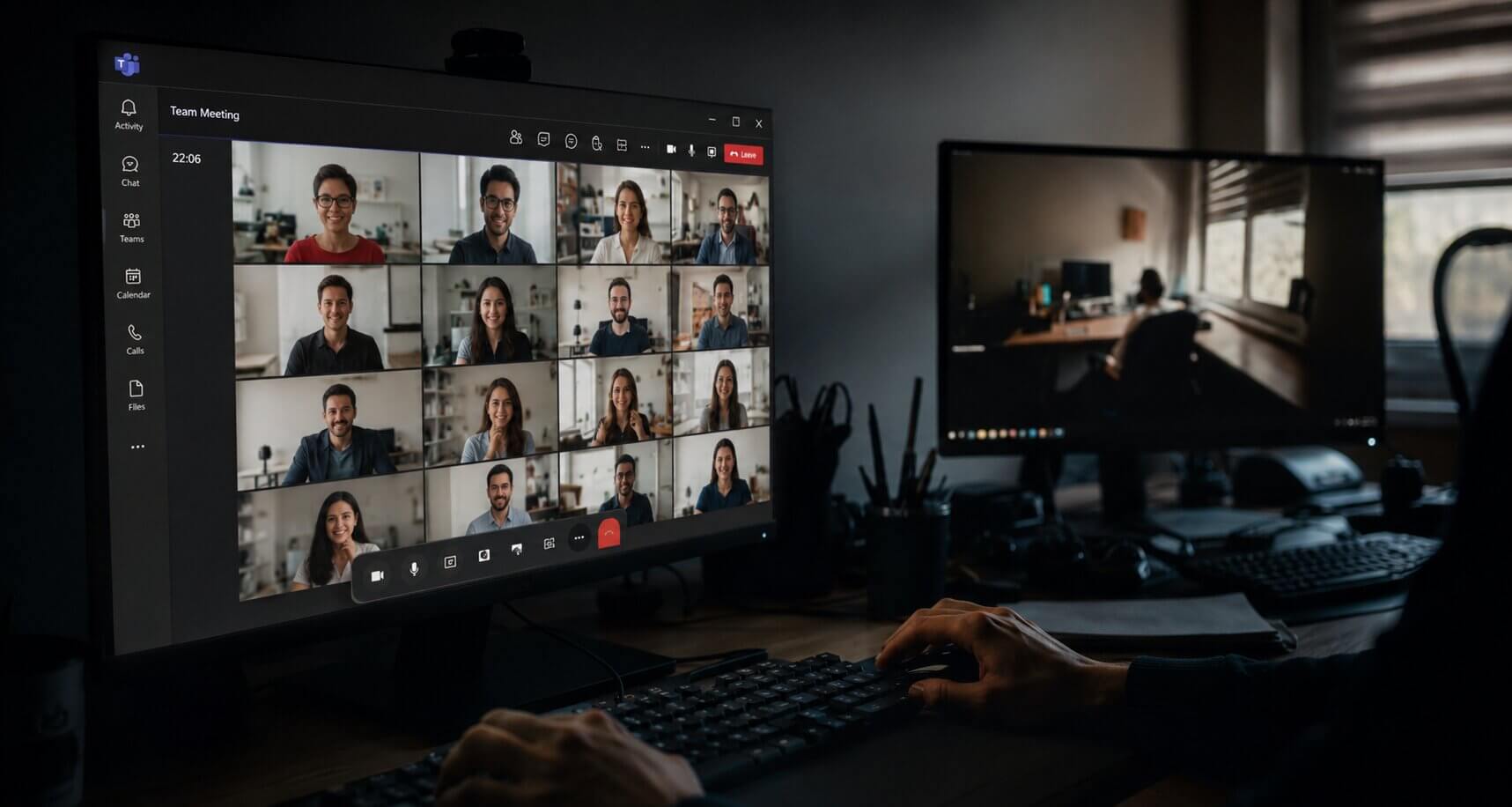
In May 2026, cybersecurity firm Rapid7 investigated an attack on several Western organizations that initially looked like a ransomware incident. The real story was more calculated.
The threat actor was MuddyWater, an Iranian state-sponsored APT group. Rather than exploiting a software vulnerability, they used Microsoft Teams itself as the attack channel. Here is what happened, step by step:
- Employees received unsolicited chat requests from external accounts via Microsoft Teams
- Once a chat was accepted, the attacker asked to start a screen-sharing session
- During the session, employees were instructed to open a text file and type in their own credentials
- Employees were then told to add an attacker-controlled device to their MFA configuration, handing over full account access
The root cause was a single default setting: Teams external access was open to all Microsoft 365 tenants, meaning anyone with a Microsoft account could reach your employees directly, with no prior relationship or approval required. No malware, no technical exploit. Just an open door and a convincing conversation.
Microsoft Teams is built on a strong security foundation. It supports enterprise-grade encryption, integrates with Microsoft Entra ID, and holds certifications including ISO 27001 and SOC 2 Type II.
But no platform is risk-free when default settings are left unreviewed. Most security incidents involving Teams trace back not to platform vulnerabilities, but to configuration gaps and users who were not prepared to recognize social engineering.
Applying the right security features and following proven best practices is what closes the distance between a secure-by-design platform and a secure-in-practice environment.
Top Microsoft Teams Security Features You Should Know
Microsoft has built a comprehensive set of security controls directly into Teams. Understanding what is available, and what requires deliberate activation, is the first step toward a stronger security posture.
End-to-End Encryption for Calls
End-to-end encryption (E2EE) is available for one-to-one Teams calls, ensuring that only the two participants can access the call content. It is not enabled by default and must be activated through Teams meeting policies in the Teams admin center.
When E2EE is active, certain features such as recording and live captions are disabled. Organizations handling sensitive verbal communications should evaluate where E2EE is appropriate and configure policies accordingly.
Meeting Sensitivity Labels and Protection Tiers
Microsoft provides a structured three-tier framework for meeting security, applied through sensitivity labels and meeting templates.
Baseline protection covers most internal meetings, with standard lobby and recording settings.
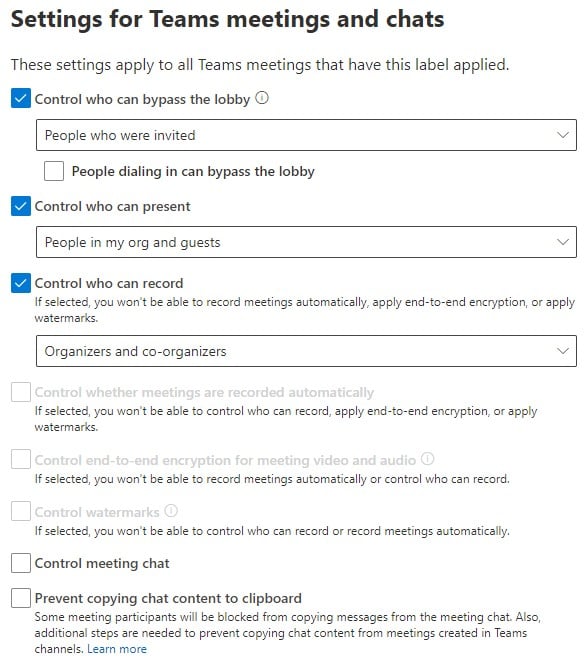
Sensitive protection restricts lobby bypass to invited participants only and limits recording to organizers and co-organizers.
Highly sensitive protection applies end-to-end encryption, watermarks on video and shared content, and disables copy-paste from chat. This tier requires a Teams Premium license.
Conditional Access Integration with Microsoft Entra ID
Teams integrates directly with Microsoft Entra ID Conditional Access, allowing organizations to enforce access policies based on device compliance, user location, sign-in risk level, and more.
This means Teams access can be blocked or challenged for users on unmanaged devices, unfamiliar networks, or accounts showing unusual sign-in behavior. Conditional Access also allows organizations to block legacy authentication protocols, which remain a common attack vector in Microsoft environments.
Safe Links and Safe Attachments via Microsoft Defender
When Microsoft Defender for Office 365 is in place, Safe Links and Safe Attachments extend protection to Teams conversations. Safe Links scans URLs shared in chat messages at the time of click, not just at the time they are posted.
Safe Attachments inspects files shared through Teams before they reach the recipient. These controls are not active by default and must be configured through the Microsoft Defender portal.
Microsoft Purview DLP for Teams
Microsoft Purview Data Loss Prevention policies can be applied directly to Teams chat and channel messages to detect and block the sharing of sensitive content such as financial data, personally identifiable information, or regulated data types.
DLP policies in Teams can generate alerts, restrict message delivery, or notify users in real time when a policy is triggered. This is particularly relevant for organizations in regulated industries where data handling rules apply to communication channels, not just file storage.
Microsoft Teams Security Best Practices
Having the right features is only part of the picture. The following practices translate those features into a consistently governed security posture.
1. Restrict External Access to Trusted Tenants Only
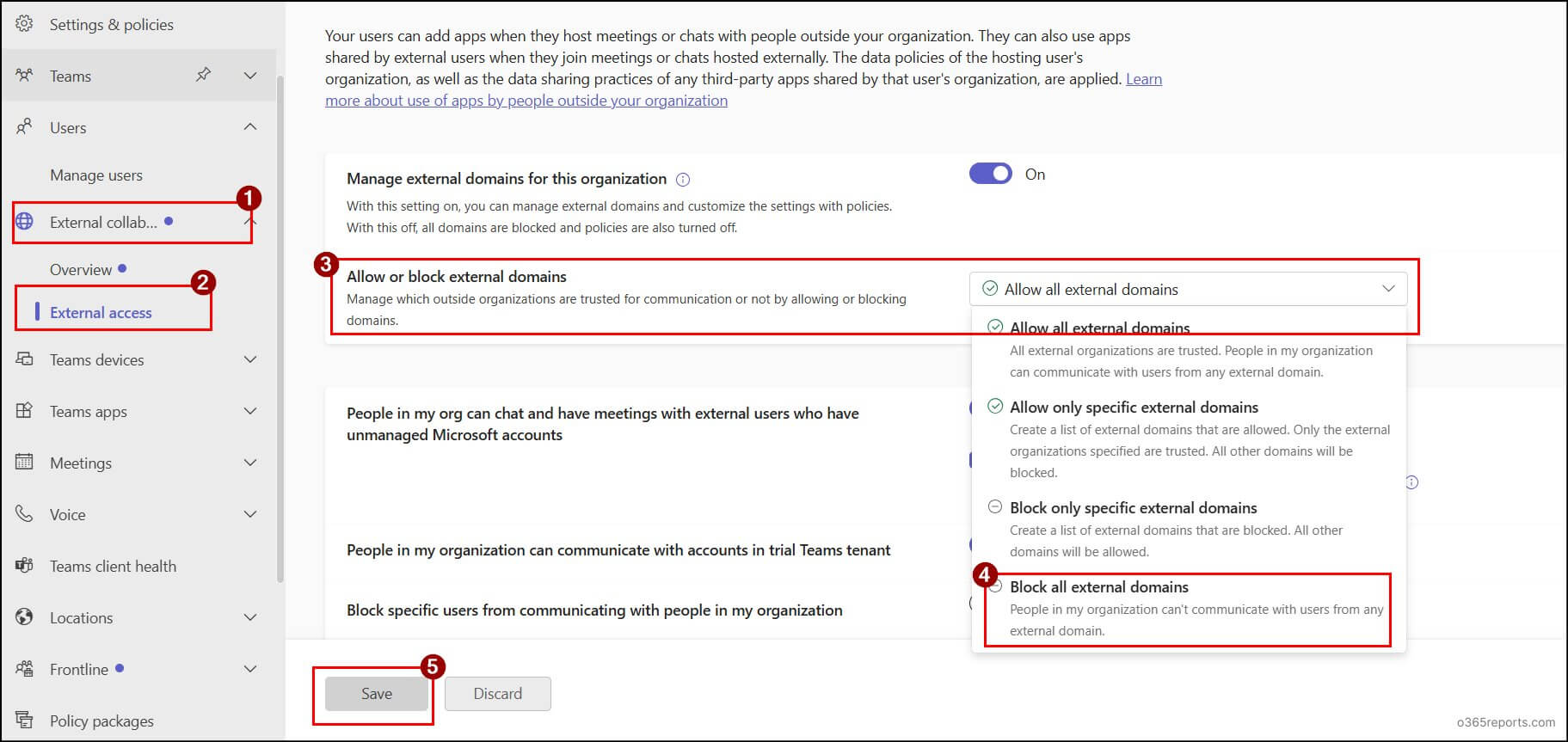
The MuddyWater attack, which I mention at top of this article, succeeded in part because Teams external access was open to all Microsoft 365 tenants by default. This setting allows any user with a Microsoft 365 account to initiate a chat with your employees, with no prior relationship or approval required.
The best practice is to restrict external access to a defined list of verified and trusted partner tenants. Organizations that do not need broad external federation should disable it entirely. Restricting this setting would have significantly reduced the attacker's access to employees.
2. Enforce MFA and Conditional Access Policies
Multi-factor authentication should be enforced for all users through Microsoft Entra ID Conditional Access, not through individual application settings alone. Conditional Access ensures that MFA requirements apply consistently across all Microsoft 365 services, including Teams.
Beyond basic MFA, organizations should define Conditional Access policies that require device compliance, restrict access from high-risk sign-in locations, and block legacy authentication protocols.
In the MuddyWater case, the attacker's goal was to add their own device to the victim's MFA configuration. A well-structured Conditional Access policy that restricts MFA device registration to compliant devices would significantly reduce the impact of this technique.
3. Govern Guest Access with Regular Reviews
Guest access and external access are two distinct settings that are frequently confused. External access operates at the tenant communication level. Guest access allows specific individuals to be provisioned into Teams channels and workspaces using guest accounts.
Microsoft Entra ID Access Reviews can be configured to automatically prompt team owners to confirm or remove guest access on a defined schedule. Organizations should also set guest account expiration policies to ensure access does not persist indefinitely.
4. Apply Meeting Protection Tiers by Sensitivity
Not every meeting carries the same risk, and applying the same settings to a weekly team standup and a board-level strategy session creates unnecessary exposure. Organizations should define which types of meetings require Sensitive or Highly Sensitive protection and apply meeting templates that enforce those settings automatically.
This removes the decision from individual organizers and ensures consistent protection for high-stakes meetings. For organizations using AI-assisted meeting tools such as the Teams Facilitator Agent, transcription and recording governance should also be defined at the template level, specifying where transcripts are stored and who can access them.
5. Use Sensitivity Labels and DLP at the Workspace Level
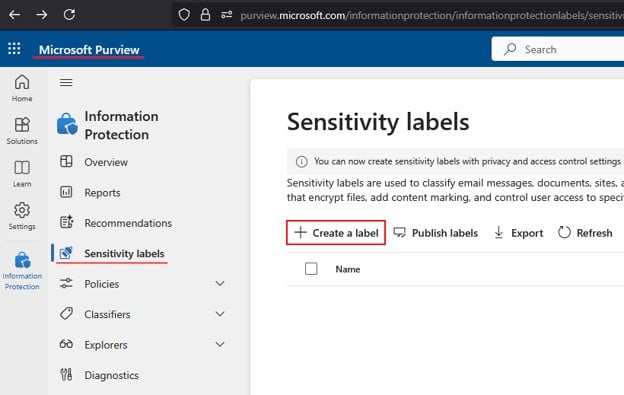
Sensitivity labels applied at the Teams workspace level enforce governance policies on everything created within that space, including files, channel messages, and meetings. A workspace labeled Confidential can automatically restrict external sharing, require encryption on downloaded files, and trigger DLP alerts when sensitive content is posted.
This approach removes the dependency on individual users making correct classification decisions every time. For a step-by-step setup guide, see Microsoft's sensitivity labels documentation here.
6. Train Users to Recognize Teams-Based Social Engineering
The MuddyWater attack did not require a single line of malicious code to gain its initial foothold. An employee accepted an unsolicited chat request, shared their screen, and followed instructions from someone they had not verified. No technical control prevented that from happening.
Security training should treat Teams as an attack surface, not just email. Users should understand that unsolicited chat requests from external parties are a recognized attack vector, that legitimate IT support will not ask for credentials through Teams chat, and that screen-sharing requests from unknown contacts should be declined and reported. Technical controls and user awareness work together. Neither alone is sufficient.
Conclusion
Microsoft Teams security is not a configuration you set once and move on from. Threats evolve, usage grows, and default settings that were acceptable at deployment may no longer reflect the organization's risk profile today. The controls exist within the platform. The practical question is whether they are configured, monitored, and reinforced through the right user behaviors.
If your organization is reviewing its Microsoft Teams security posture and wants a practical assessment of where gaps exist, Precio Fishbone can help you identify the right controls and governance approach for your Microsoft environment.
Contact to our expertsFrequently Asked Questions
Is Microsoft Teams secure for business use?
Yes, Teams is built on enterprise-grade infrastructure with encryption, compliance certifications, and Entra ID integration. However, many important security controls are not enabled by default and require deliberate configuration to be effective.
What is the biggest security risk in Microsoft Teams?
Misconfigured external access is the most common high-impact risk. Open external federation allows any Microsoft 365 user to contact your employees directly, which was the exact entry point exploited in the MuddyWater attack in May 2026.
How can organizations prevent social engineering attacks through Teams?
Restrict external access to verified partner tenants only, and train users to treat unsolicited chat requests from unknown external contacts as a red flag. Legitimate support teams will never ask for credentials or MFA device additions through Teams chat.
Does Microsoft Teams support HIPAA compliance?
Teams can support HIPAA-compliant workflows when a Microsoft Business Associate Agreement is in place and the organization has configured the required safeguards through Microsoft Purview. The BAA alone is not sufficient.
Share this on

Pär Johansson
Pär works with international business at Precio Fishbone, project delivery & digital services, helping turn complexity into progress and strategy into long-term value. With many years of experience in international business, He is known for building strong relationships and turning plans into meaningful progress. Driven by people, trust and sustainable growth.