
Restricted SharePoint Search retires on January 31, 2027. Many organizations switched it on as a temporary safeguard before Copilot: it hid every site except an allow-list of up to 100. When it retires, every site outside that list returns to organization-wide search and Copilot, so the sites to check now are the ones that were never on the list.
- What changes on January 31, 2027? Learn the three retirement dates and what becomes discoverable.
- What replaces the allow-list? Understand why Restricted Content Discovery works as a block-list.
- Which sites need a decision before the deadline? See how to inventory and migrate them in six steps.
Restricted SharePoint Search Retirement Runs on Three Dates
Three dates define this retirement. The first has already passed, and the final one is January 31, 2027.
Microsoft set the schedule in MC1395311, published June 18, 2026. The reason given is that Microsoft 365 now provides more granular and scalable controls.
- July 31, 2026. New enablement is blocked. Tenants that had not switched the control on can no longer switch it on. That date has passed.
- January 31, 2027. The feature is fully retired. The notice states there are no extensions or exceptions.
- February 28, 2027. The PowerShell cmdlets stop working, so an allow-list you have not exported by then can no longer be read with them.
Microsoft will not automatically migrate existing configurations to Restricted Content Discovery. Nothing prompts you on January 31. The setting stops applying, and the notice is blunt about the result: if no action is taken, restricted content may become discoverable after retirement.
Discoverable means every site outside the old allow-list returns to organization-wide search and to Microsoft 365 Copilot, which is the same surface that Copilot agent governance runs on. Permissions do not change. Only the filter sitting on top of them goes away.
The change reaches SharePoint Online, Microsoft Search, and Microsoft 365 Copilot. It applies across Worldwide, GCC, GCC High, and DoD environments, so sovereign cloud tenants get no extra runway.
Restricted Content Discovery Flips Allow-List to Block-List
Restricted Content Discovery works the other way around. You list the sites you want to keep out of organization-wide discovery. Sites without that restriction remain discoverable under the normal Microsoft 365 search and Copilot rules.
Microsoft calls them Restricted SharePoint Search and Restricted Content Discovery. Nobody is going to keep those straight in a meeting, so here is the difference that matters:
| Restricted SharePoint Search | Restricted Content Discovery | |
| What you list | Up to 100 sites allowed in organization-wide search and Copilot | Sites kept out of organization-wide search and Copilot |
| A new site by default | Hidden until someone adds it | Discoverable unless someone restricts it |
| Scope | One tenant-wide switch | A setting on each site |
| Who manages it | SharePoint administrators | SharePoint administrators, or site owners if delegated |
| Status | Retires January 31, 2027 | The control Microsoft recommends |
That change in default is the part to pay attention to. Under the old model, a new site stayed out of organization-wide search until someone approved it. Under the new model, a new site is discoverable unless someone explicitly restricts it.
Restricted Content Discovery governs whether content can be found, not who is allowed to open it. A user who already has permission to open a site or file can still open it. The site's existing permissions do not change. That makes this a Copilot readiness question, not a permissions fix.
The user experience is different. When a site is restricted, its Copilot entry points disappear, including the Copilot button and AI actions such as agent creation. The site also gets a visible Restricted tag.
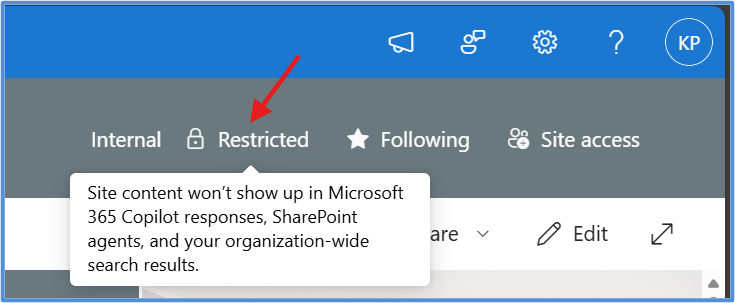
FIGURE 1: The Restricted tag users see on the site.
That is likely to be the first thing users notice. Nobody in the finance team is going to open a ticket because their site disappeared from organization-wide search. They are going to notice that the Copilot button is gone.
So if you plan to restrict sites, tell your service desk before you do it.
Delegating Restricted Content Discovery Cuts Both Ways
Site owners can manage the setting themselves, but only if the tenant enables delegation. It is off by default. A tenant admin must run the following PowerShell command to enable delegation:
Set-SPOTenant -DelegateRestrictedContentDiscoverabilityManagement $true
And to verify delegation status, run:
Get-SPOTenant | Select-Object DelegateRestrictedContentDiscoverabilityManagement
That can reduce the workload for a central admin team, but it also changes the governance model. A delegated site owner who can restrict a site can also remove that restriction. When delegation is enabled, site administrators must provide a justification when they change the setting, and the change is recorded in the Purview audit log.
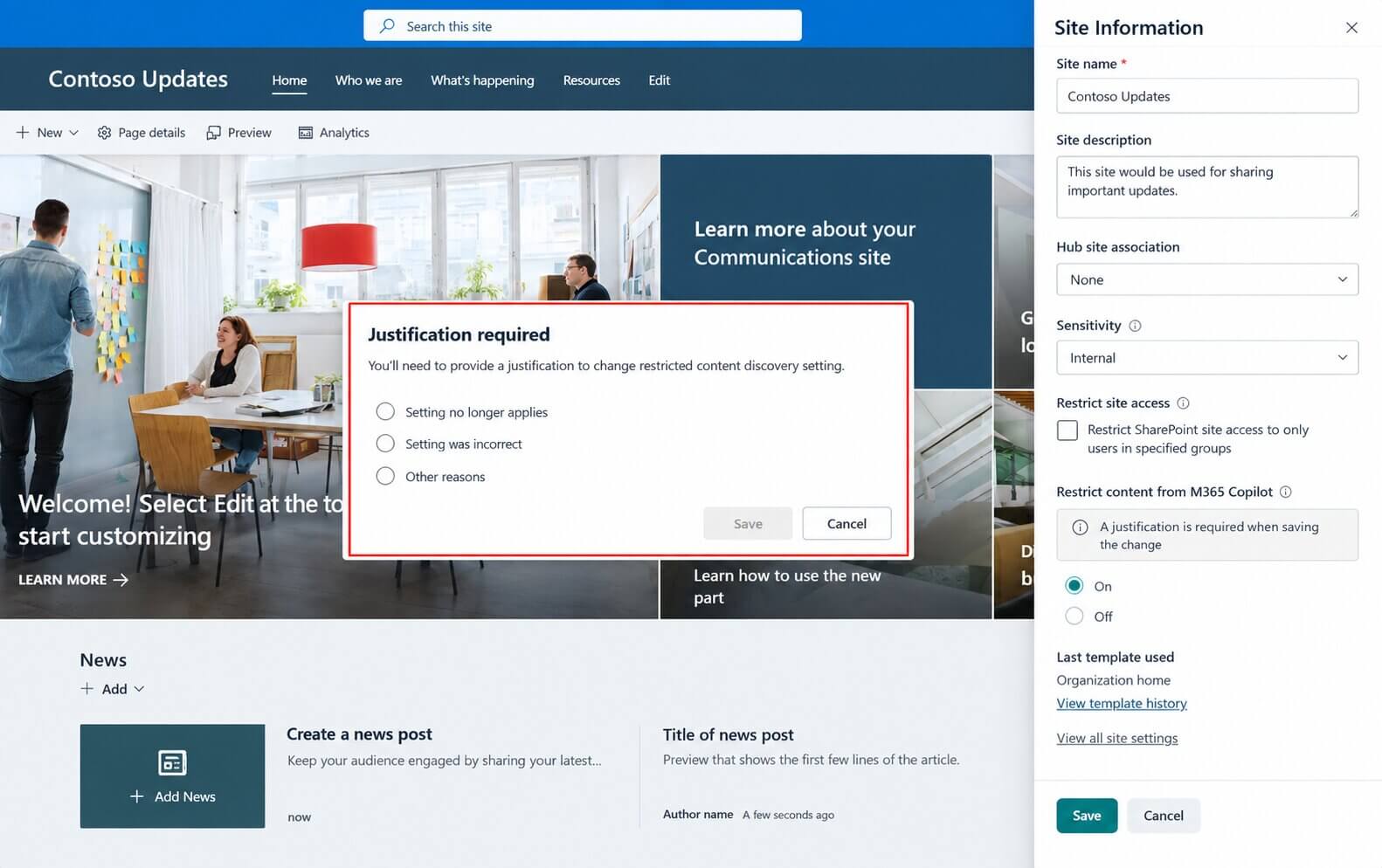
FIGURE 2: The justification a site owner must give.
That gives you an audit trail, not automatic governance. A site owner can undo a restriction your governance team put in place months ago and enter "tidying up" as the reason. If you enable delegation, decide who is responsible for reviewing those changes before you hand the switch to site owners.
Run the Inventory Before You Restrict Anything
The first useful step is to compare the old allow-list with every site in the tenant. The allow-list records the sites someone already reviewed and approved for broad discovery. Everything outside it becomes discoverable on January 31, and nobody has signed off on that yet.
What the Row Count Tells You
Start with how much of the tenant sits on the list.
- Most sites already on the list: This is probably routine platform housekeeping. Review the few sites outside it, apply the new control where needed, and document the change.
- A small share of the tenant on the list: The allow-list was probably doing more than temporary search control. It was hiding most of the tenant while unresolved permissions or data-governance issues waited for a fix. With a 100-site ceiling, most enterprise tenants land here.
At enterprise scale, do not read hundreds of sites one by one without a plan. Group them by business unit and sensitivity, then identify sites without an active business owner. This is also a good starting point for a Data Risk Assessment or a Copilot readiness review before rollout. The question for every group is simple:
Does this site stay hidden because the content is genuinely sensitive, or because nobody fixed the permissions underneath it?
That answer usually sits with the business, not IT. Get the relevant data owners involved before the migration deadline. The migration can be scripted. That decision cannot.
We assess what Copilot can surface before January 31.
A readiness report on sharing and permission exposure.
See our AI Data Risk Assessment →
Run the Migration in Six Steps
To get started, you need SharePoint Administrator or equivalent permissions, plus the required SharePoint Online PowerShell module. Connect first:
Connect-SPOService -Url https://contoso-admin.sharepoint.com
1. Confirm the old control is still on.
Get-SPOTenantRestrictedSearchMode
It returns Enabled or Disabled. If it returns Disabled, your tenant is not using the old control, so there is nothing to migrate. Update your documentation and stop here.
2. Export the allow-list while you still can.
$sites = Get-SPOTenantRestrictedSearchAllowedList
$sites | ForEach-Object { $_.ToString() } | Set-Content .\rss-allowed-list.txt
Export it now. Once the cmdlet stops working (February 28, 2027), you lose the easiest way to retrieve the tenant's old allow-list. Check the file before you continue and confirm it contains one site URL per line. If the list includes hub sites, their associated sites were discoverable too, so treat them as part of the list.
3. List the sites outside the allow-list. These are the sites that become discoverable. A business decision needs owners, activity, and size:
$allowed = Get-Content .\rss-allowed-list.txt | ForEach-Object { $_.TrimEnd('/') }
Get-SPOSite -Limit All |
    Where-Object { $allowed -notcontains $_.Url.TrimEnd('/') } |
    Select-Object Url, Title, Owner, LastContentModifiedDate, StorageUsageCurrent |
    Export-Csv .\rss-review.csv -NoTypeInformation
4. Apply Restricted Content Discovery to the sites the data owners want kept hidden. One site:
Set-SPOSite -Identity https://contoso.sharepoint.com/sites/Finance -RestrictContentOrgWideSearch $true
Or save the approved rows of your review file as rcd-approved.csv and run:
Import-Csv .\rcd-approved.csv | ForEach-Object {
    Set-SPOSite -Identity $_.Url -RestrictContentOrgWideSearch $true
}
Admins who prefer the interface can do the same thing per site: SharePoint admin center → Sites → Active sites → select the site → Settings → turn on Restrict content from Microsoft Copilot → Save.
5. Verify before you switch anything off. The setting takes time to propagate, and Microsoft says a site with more than 500,000 items can take over a week. Start early. Per site:
Get-SPOSite -Identity https://contoso.sharepoint.com/sites/Finance | Select RestrictContentOrgWideSearch
Tenant-wide, SharePoint Advanced Management gives you a report:
Start-SPORestrictedContentDiscoverabilityReport
Get-SPORestrictedContentDiscoverabilityReport
Get-SPORestrictedContentDiscoverabilityReport -Action Download -ReportId <ReportGUID>
Keep that report. It is the evidence that the migration happened, and the baseline for reviewing what site owners change later.
6. Turn off the old control.
Set-SPOTenantRestrictedSearchMode -Mode Disabled
Why You Should Not Restrict Every Unlisted Site
The tempting approach is to reproduce the old behavior: restrict every site that was not on the allow-list. That is fast, but it preserves the wrong thing.
First, it can restrict hundreds of sites that no longer need it. Microsoft cautions against excessive use of Restricted Content Discovery because restricting discovery also limits what search and Copilot can use, and describes the control as temporary.
Second, it carries old governance decisions into the new model without reviewing them. The old scope is useful precisely because it tells you where someone once had concerns. It is not proof that those concerns are still valid.
Hiding everything outside a short allow-list was a declaration that the permissions underneath were not ready to be trusted. That is a SharePoint governance problem, and moving the same sites into a new control does not solve it.
Work With Precio Fishbone
Precio Fishbone works with organizations to move from AI and Microsoft strategy to structured, practical implementation. To discuss what this means for your environment, contact our team.
Talk to our expertFrequently Asked Questions
Does Restricted Content Discovery change who can open a file?
No. It changes discovery, not permissions. Users who already have access can still open the file.
When does Restricted SharePoint Search retire?
New enablement stopped on July 31, 2026. The feature retires on January 31, 2027, and its PowerShell cmdlets stop working on February 28, 2027.
Will Microsoft migrate Restricted SharePoint Search automatically?
No. Microsoft will not migrate the existing configuration. Review the sites outside the old allow-list instead of restricting all of them under the new control.
Does Restricted Content Discovery require an extra license?
Not if you already use Copilot. It needs SharePoint Advanced Management, and a tenant with at least one Microsoft Copilot license assigned gets those capabilities automatically.
Share this on

Pär Johansson
Pär works with international business at Precio Fishbone, project delivery & digital services, helping turn complexity into progress and strategy into long-term value. With many years of experience in international business, He is known for building strong relationships and turning plans into meaningful progress. Driven by people, trust and sustainable growth.