
What Is Skills for Copilot Studio?
Skills for Copilot Studio is an open-source plugin from the Copilot Acceleration Team (CAT) at Microsoft. It plugs into two terminal based coding assistants, Claude Code and GitHub Copilot CLI, and lets a developer build an agent's logic, run it through test cases, and chase down bugs, all without leaving the command line.
It is built for teams who already know what an agent needs to do and want to skip the manual work of clicking through topics, actions, and triggers one by one. The plugin reads a natural language description of the requirement and generates the corresponding agent architecture as YAML, ready to push into Copilot Studio.

This guide covers what the plugin assumes you already have, how installation works, the four step development workflow, a real implementation scenario, and where the tool still has limitations.
What Problem It Solves
Copilot Studio provides a visual environment for building agents, but complex implementations make manual authoring and testing slow. Every topic, trigger, and knowledge source connection is built by hand, and testing changes means switching between the canvas and a separate test pane.
A general-purpose coding assistant can write YAML on request, but it does not carry deep knowledge of the Copilot Studio schema. Output can look valid and still fail validation or miss nuances such as how a trigger interacts with the orchestrator, how a variable should be scoped, or when a ConditionGroup needs to follow a generative answer node.
Skills for Copilot Studio addresses both problems by packaging schema knowledge and CAT team design patterns directly into the plugin. Three characteristics define how it works.
- A natural language requirement produces a full agent architecture: topics, actions, knowledge sources, and variables.
- Best practices are encoded into the skill of logic itself, rather than documented separately.
- Writing topic logic, validating it against real inputs, and fixing what breaks all happen in one place, without switching tools mid task.
What You Need Before You Start
Two prerequisites need to be in place.
- Claude Code or GitHub Copilot CLI, installed and working.
- VS Code with the Copilot Studio Extension, which clones an agent locally and later pushes changes back to Copilot Studio.
Without both, the plugin can still be installed, but there is no agent to work against, and no way to publish generated changes.
How to Install the Plugin
Installation runs through the plugin marketplace using two commands.
/plugin marketplace add microsoft/skills-for-copilot-studio
/plugin install copilot-studio@skills-for-copilot-studio
After installation, enable auto updates in the plugin or marketplace settings. The CAT team ships frequent updates as Copilot Studio adds capabilities, so a stale local copy can fall behind the current schema.
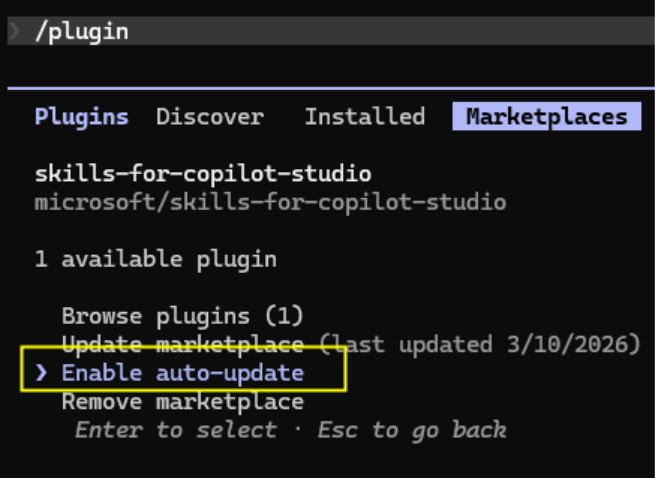
In Claude Code, type /plugin, select Skills for Copilot Studio from the list, and confirm auto update is switched on.
How the Development Workflow Works
Once installed, day to day work follows four steps.
Step 1: Create an Agent in Copilot Studio
Version one of the plugin has no way to bootstrap an agent that does not already exist somewhere. Build the initial shell inside the Copilot Studio portal first, even if that means clicking New Agent and leaving every default setting untouched. That gives the plugin an actual file structure to read and extend, rather than a blank slate it cannot reason about.
Step 2: Clone the Agent Locally
Use the Copilot Studio Extension in VS Code to clone the agent into a local folder. This gives the plugin files it can read, edit, and validate.
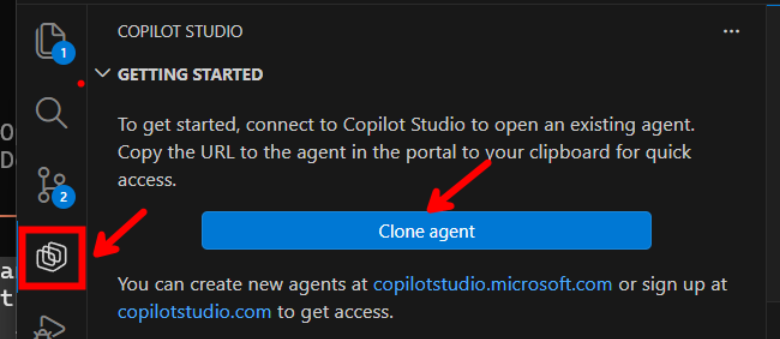
Cloning an agent locally through the Copilot Studio Extension for VS Code
Step 3: Author, Test, and Troubleshoot
Three commands map to different phases of development, and each one works the same way in Claude Code and GitHub Copilot CLI, since both run on the same underlying skill logic.
| Command | Purpose |
| /copilot-studio:author | Generates and updates an agent's YAML definition, covering topic logic, actions, connected knowledge sources, trigger phrases, and how variables are scoped |
| /copilot-studio:test | Runs validation against a published agent, whether that is a single point test, a full batch suite, or reviewing evaluation results after the fact |
| /copilot-studio:troubleshoot | Investigates why an agent misbehaves, whether that means a topic firing in the wrong order, a validation error the portal will not explain clearly, or behavior that simply does not match what was expected |
Invoking a command means tagging it and describing the requirement directly, for example asking the author's command to build out a specific customer facing scenario and listing what it needs to handle.
Step 4: Push Changes Back to Copilot Studio
Once the generated YAML looks correct, push it back through the VS Code Extension and review the result inside the Copilot Studio canvas.
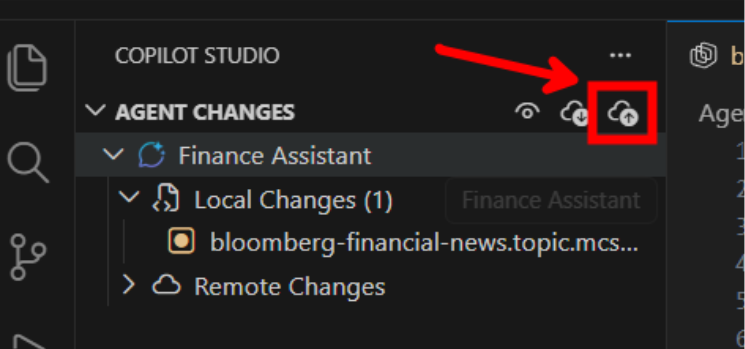
Pushing generated changes back to Copilot Studio
A Real-World Implementation
The CAT team documented a scenario from an actual engagement, anonymised to protect the client, including a change of industry to preserve privacy. A system integrator was mid-way through a complex B2C implementation for a large multinational customer.
Problem: The customer delivered a requirement spreadsheet covering more than thirty separate use cases. The agent's original architecture had not been designed for that volume, and it showed: users kept landing on the wrong topic, and the agent regularly reached for a tool that had nothing to do with what was actually being asked.
Approach: The team described the problem to /copilot-studio:author and attached the requirements spreadsheet directly, asking the plugin to help refactor the agent so it could scale.
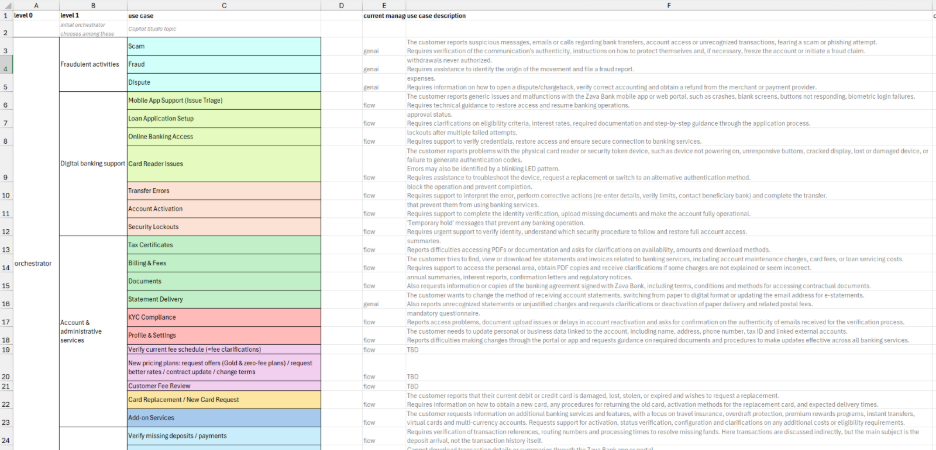
A representative requirements document similar to the one used in this engagement
What the tool generated: Working from the written request and the contents of that spreadsheet, the plugin worked out how the agent's topics should be organized, mapping model descriptions, question nodes, conditions, and variables to a topic structure, then produced the YAML to match.
Result: It also spotted topics doing similar work and resolved the overlap by writing disambiguation guidance straight into the agent's instructions, a technique the team building the agent had not tried before. After pushing the YAML and reviewing it in the Copilot Studio canvas, only minor adjustments were needed before the agent moved into quality assurance.
Practical takeaway: The value here goes beyond producing syntactically valid YAML. The plugin applied an implementation pattern that reflects real experience scaling Copilot Studio agents, not just schema compliance.
Where the Tool Still Falls Short
A small group within the CAT organisation builds and maintains this plugin as a side project, not as a shipped Microsoft product with a support contract behind it. That distinction should factor into how any team plans a rollout around it.
- Microsoft has not committed to keeping the underlying YAML schema stable. A field or structure that works today could be renamed or restructured in a future Copilot Studio update, so nothing generated by the plugin should go into a live environment without a manual pass first.
- The plugin narrows the gap versus a generic coding assistant, but it does not close it entirely. A generated topic can still reference a pattern of Copilot Studio no longer supports, which is exactly why the review step in step four of the workflow matters.
- Because this is a fast-moving side project rather than a shipped product, the roadmap leans heavily on community input. Filing a GitHub issue against the repository is the channel the CAT team points people to for shaping what gets fixed or built next, including any path toward becoming a supported part of Copilot Studio.
Practical Tips for Teams
Start with a low-stakes agent rather than a production critical one, just to see how the three commands hand off to each other in practice. Read the generated YAML in full at least once instead of skimming it, since the plugin speeds up the work without taking accountability for the final architecture off your plate. Keep auto update enabled, since a good part of the value here comes from staying current as Copilot Studio adds new capabilities the plugin needs to know about.
Talk to Precio Fishbone for more Consultations
FAQ
Does Skills for Copilot Studio replace the Copilot Studio portal?
No. The portal is still required to create the initial agent shell, review results visually, and publish. The plugin replaces the manual work of authoring, testing, and troubleshooting topics and actions.
Is VS Code required?
Yes. Cloning an agent locally and pushing changes back both depend on the Copilot Studio Extension inside VS Code.
Does it work with both Claude Code and GitHub Copilot CLI?
Yes. Both run on the same underlying skill logic, so developers can use whichever terminal assistant they already work in.
Can it build an agent entirely from scratch?
Not yet. Create the agent shell in the Copilot Studio portal first, then clone it locally and continue development with the plugin.
Is it ready for production use?
It is best treated as an accelerator rather than a fully supported production tool. Generated YAML still needs human review before deployment, and the schema can change without notice.
Where should issues be reported?
Through GitHub issues on the Skills for Copilot Studio repository, which is the channel the CAT team uses to prioritise fixes and new capabilities.
Share this on

Pär Johansson
Pär works with international business at Precio Fishbone, project delivery & digital services, helping turn complexity into progress and strategy into long-term value. With many years of experience in international business, He is known for building strong relationships and turning plans into meaningful progress. Driven by people, trust and sustainable growth.